
This article covers the same ground as the video below — Aqara P2 hardware overview, pairing with Home Assistant, physical installation, and a full list of automation ideas. Watch for the hands-on demo; read for the complete reference.
What is a contact sensor?
A contact sensor is one of the simplest smart devices available — two components that generate an event when separated. Attach one to a door frame, the other to the door itself, and you know the moment it opens or closes. The same logic applies to windows, cabinets, mailboxes, or anything with a moving part.
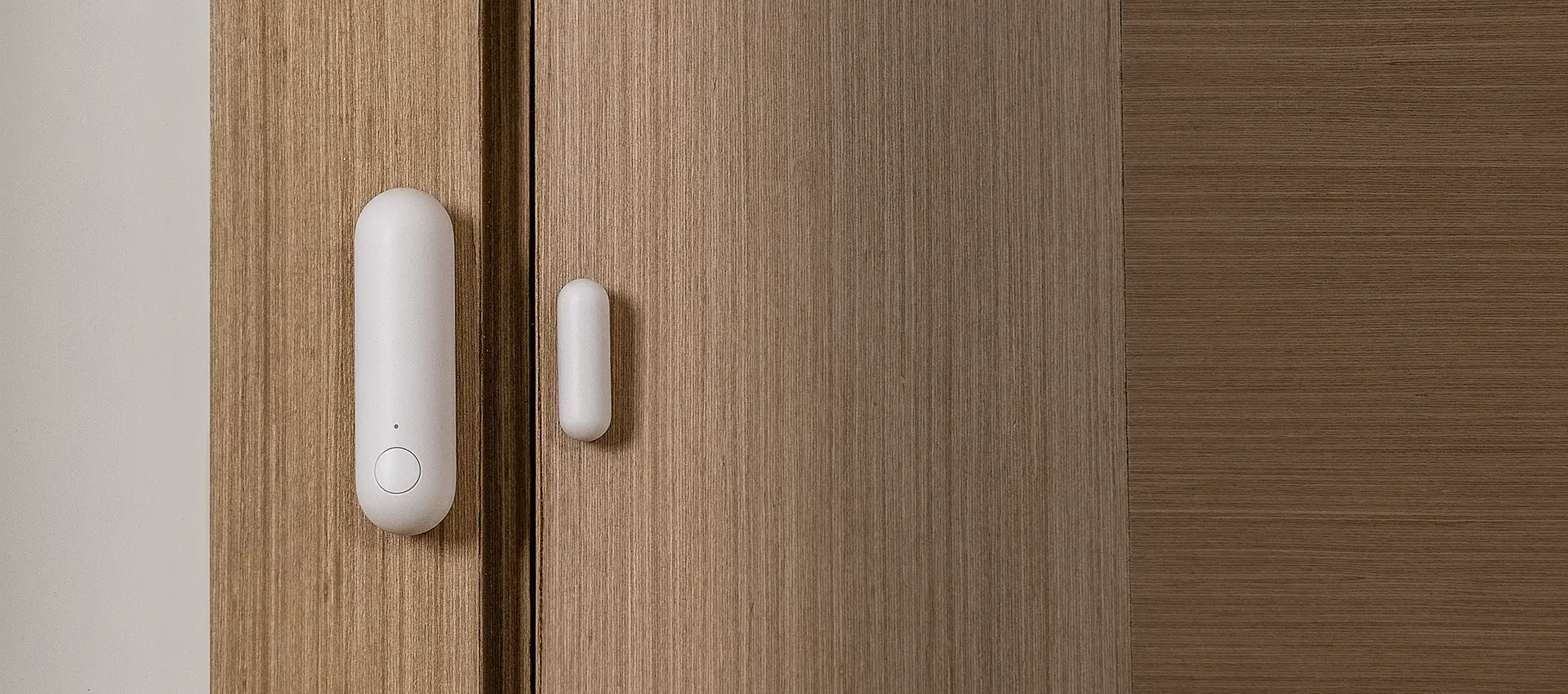
The Aqara P2 is a battery-powered Matter over Thread contact sensor. It pairs with a Matter controller and Thread border router — Apple TV, HomePod mini, Nest Hub, or Home Assistant with a Thread radio. Once paired, it shows up in your platform of choice and generates open/closed events in real time.
Hardware and setup
The P2 runs on a 3V CR123A battery, which is widely available. Battery life is typically one to two years depending on usage frequency. Pull the plastic strip to power on — a blue LED confirms the device is active.
To pair in Home Assistant: go to Settings → Devices & Services → Add Integration → Add Matter Device → New Device. Scan the QR code on the device (or on the documentation card in the box — the QR code on the device itself is very small). Follow the prompts. The sensor appears as a device with open/closed state entities.
Physical installation
The sensor has two components: the main sensor body and a smaller contact magnet. Each has a sticky adhesive pad for mounting. Key installation notes:
- The sensor body goes on the non-moving part (door frame, window frame, wall).
- The contact magnet goes on the moving part (the door or window itself).
- Both components have a small alignment line indicator — match these when positioning for correct alignment.
- Clean the mounting surface thoroughly with an alcohol wipe before applying the adhesive.
- The two components should be barely touching when closed — too much overlap causes friction; too large a gap and the sensor won't detect closure correctly.
Once mounted, open and close the door a few times to confirm the state changes registering in Home Assistant.
Context makes it smart
Open/closed is the raw data. What you do with that data is where things get interesting. A contact sensor in isolation isn't particularly useful. A contact sensor combined with time of day, presence information, other sensor states, and Home Assistant helpers can drive sophisticated automations that feel genuinely intelligent.
For example: the front door opens. That event alone could mean a resident arriving, a resident leaving, or an intruder. Add presence detection (everyone's phone is away from home) and time (2 AM), and the automation context becomes completely different. Now you trigger cameras to record, send an alert, and optionally trigger an alarm — not just turn on a light.
Home Assistant helpers — particularly input boolean "toggle" helpers — let you add stateful context to automations. Create a boolean named night_mode, set it on/off via a separate time-based automation, and your door sensor automation can check its value to behave differently at night than during the day. This pattern — small sensors combined with helper state — is fundamental to building automations that don't fire arbitrarily.
Automation ideas
Here's a sampling of what you can build with contact sensors:
Lighting: Front door opens at night → foyer light on. Closet door opens → light on; closet door closes → light off after 30 seconds. Pantry door opens → under-shelf LEDs on.
Climate: Any window opens → pause the AC or heating. Fireplace room door opens → turn off central heat in that zone. Duration-based: window open for more than 15 minutes → alert to close it before air conditioning loss becomes significant.
Security: Front door opens when no one is home → send phone notification, trigger indoor cameras to record, optionally trigger alarm. After 11 PM + window opens → alert. Garage door has been open for more than 5 minutes after you left home → auto-close.
Smart locks: Door closes → auto-lock after 20 seconds if people are home, or 2 seconds if away. Specific person arrives → set lighting to their preferred scene, play their music.
Mailbox: First open/close of the day → add a notification to the dashboard that mail has arrived. Subsequent open/close → clear the notification.
Pet door: Dog door opens → turn on outdoor cameras, turn on outdoor lights if night, add a dashboard card showing pet is outside. Dog hasn't come back in after a while → alert.
Good practices
Name sensors according to their location, not just "door sensor." Names like front_door_contact or kitchen_window_contact make automations readable and easier to maintain. Check battery percentage annually — Home Assistant exposes a battery entity for the P2 that makes this easy. You can even build an automation to notify you when it drops below 20%.